
How to add an email signature in Zoho Mail (web, mobile and HTML)
Create a Zoho Mail signature, assign it to the right address, set separate defaults for replies, add a logo or HTML design and use it on mobile.
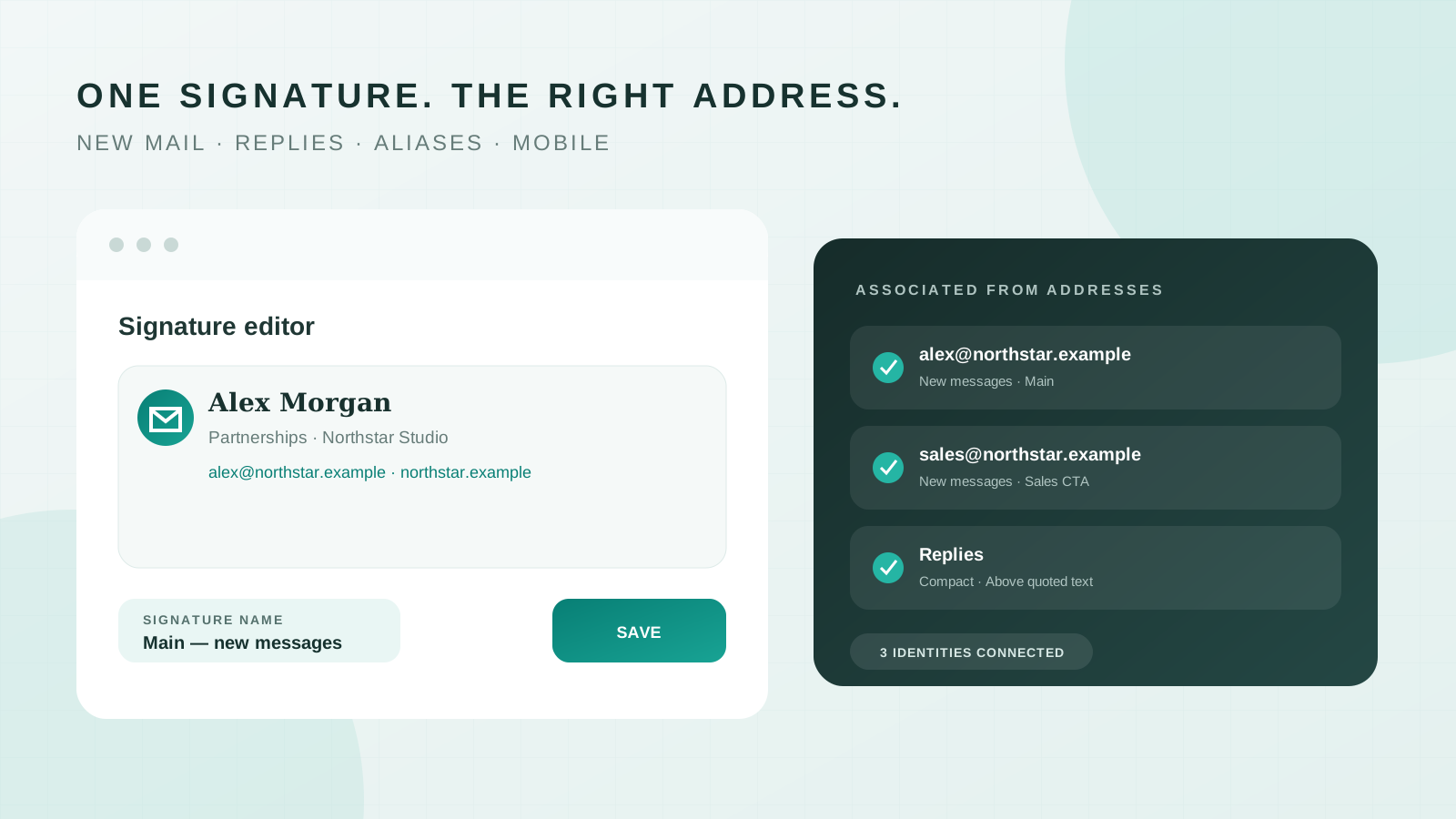
Zoho Mail gives you more control over signatures than most email clients: you can keep several named versions, assign each one to specific addresses or aliases, choose separate defaults for new messages and replies, insert HTML and attach a contact card. That flexibility also creates more places for a setup to go wrong.
This guide shows the complete workflow in Zoho Mail on the web and mobile, including the setting that determines whether the signature appears automatically for the address in the From field.
The Zoho Mail signature settings at a glance
| What you want to do | Where it lives | Detail that matters |
|---|---|---|
| Create or edit a signature | Settings > Signatures | Give every version a unique name |
| Use it automatically | Associated From address(es) | New messages and replies have separate assignments |
| Switch for one message | Composer > Signature | The selected version replaces the default for that message |
| Add a logo or HTML | Signature editor | HTML images need a public URL |
| Use signatures on mobile | Composer > More options > Signature | iOS can create one; Android currently inserts saved versions |
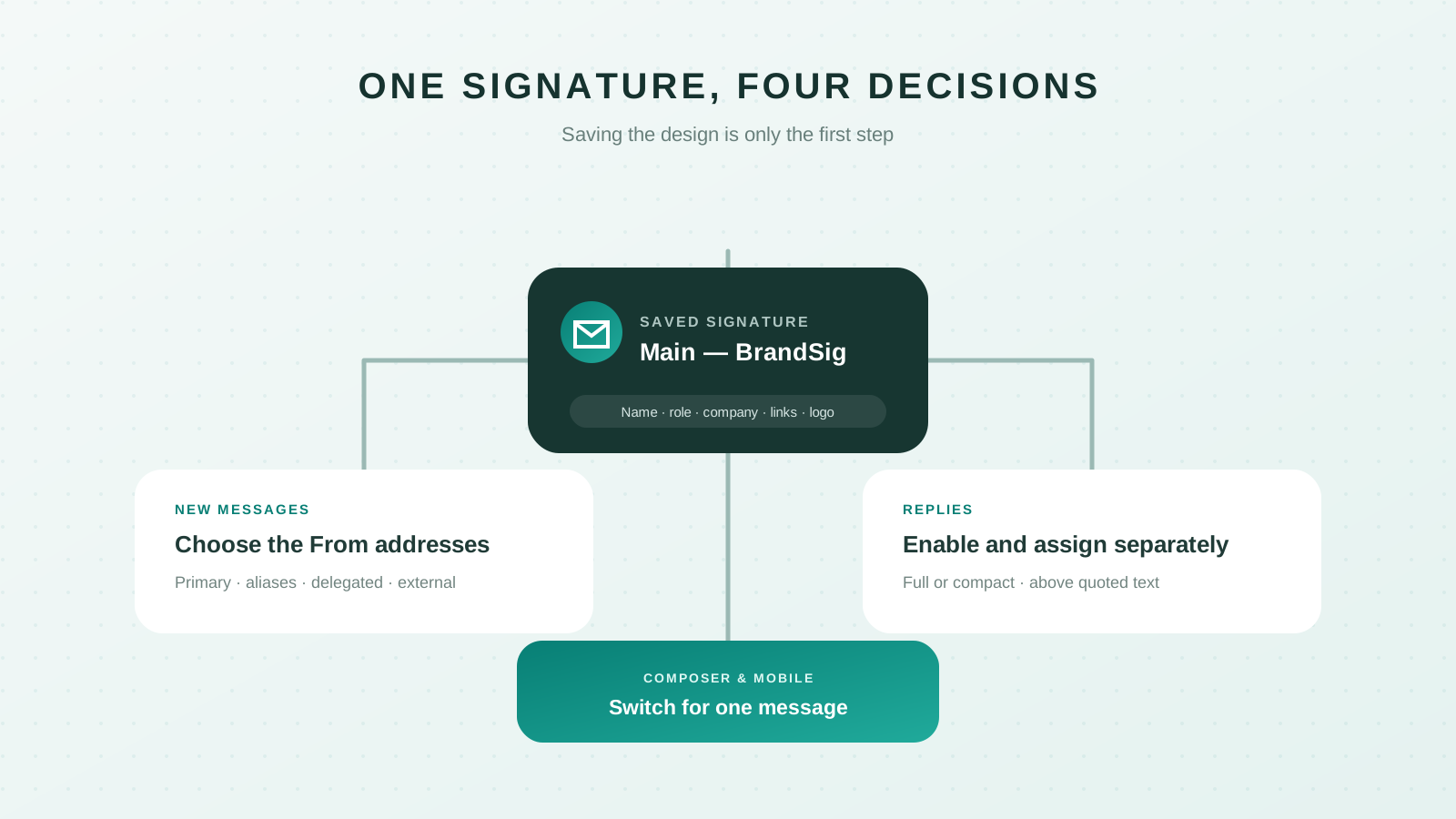
Zoho's current signature documentation confirms that multiple rich text signatures, formatted HTML and per-address assignments are supported. The useful first step is to decide which sending identity each version belongs to.
Create a signature in Zoho Mail on the web
- Sign in to Zoho Mail in a desktop browser.
- Click the Settings gear.
- Open Signatures.
- Click the + icon to create a signature.
- Enter a unique name, such as `Main`, `Sales` or `Compact reply`.
- Add and format the content in the editor.
- Click Save.
Use the name to describe when the signature is used, not what it looks like. `Sales — new messages` is more useful six months later than `Purple version`.
Saving the signature creates it, but does not necessarily make it appear automatically. That behavior depends on the address association in the next section.
Associate the signature with the right From address
Zoho can send from a primary address, aliases, external addresses, groups and delegated addresses. A signature appears automatically only when it is associated with the identity selected in the message's From field.
In the signature settings, find Associated From address(es) for new emails and select the addresses that should use this version. Then configure Associated From address(es) for the replies if you want it to appear in replies as well.
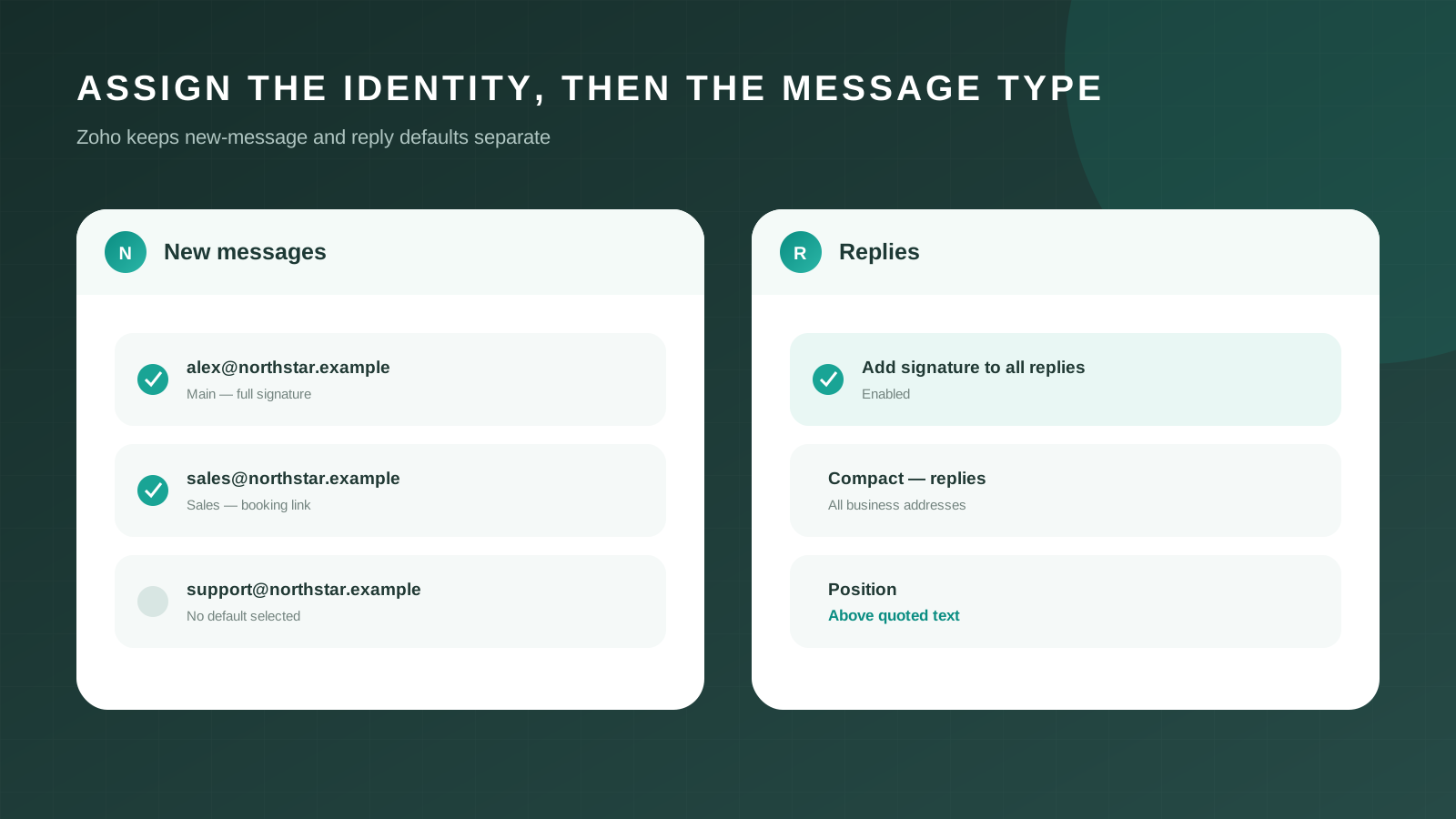
This separation is useful when one person handles several roles. A primary business address can use a complete branded signature, a support alias can use a compact team identity and a personal alias can stay minimal.
Open a new draft after saving and select the intended From address. If the signature does not appear, check the association before editing the design.
Paste a BrandSig design or formatted HTML
Zoho explicitly supports signatures created with an email signature generator. Build the signature in BrandSig, copy the rendered result and paste it into Zoho's visual signature editor.
Use this workflow:
- Create the signature in BrandSig with your name, role, company and useful contact details.
- Keep the important details as real text and use the logo as a supporting image.
- Click Copy in BrandSig.
- Paste into Zoho's signature editor.
- Name and save the signature, then associate it with the correct addresses.
Zoho also has an Insert HTML option. Use it when you already have compatible email markup and understand where its images are hosted. Do not paste raw tags such as `<table>` into the normal visual area; use the HTML option or paste the rendered signature instead.
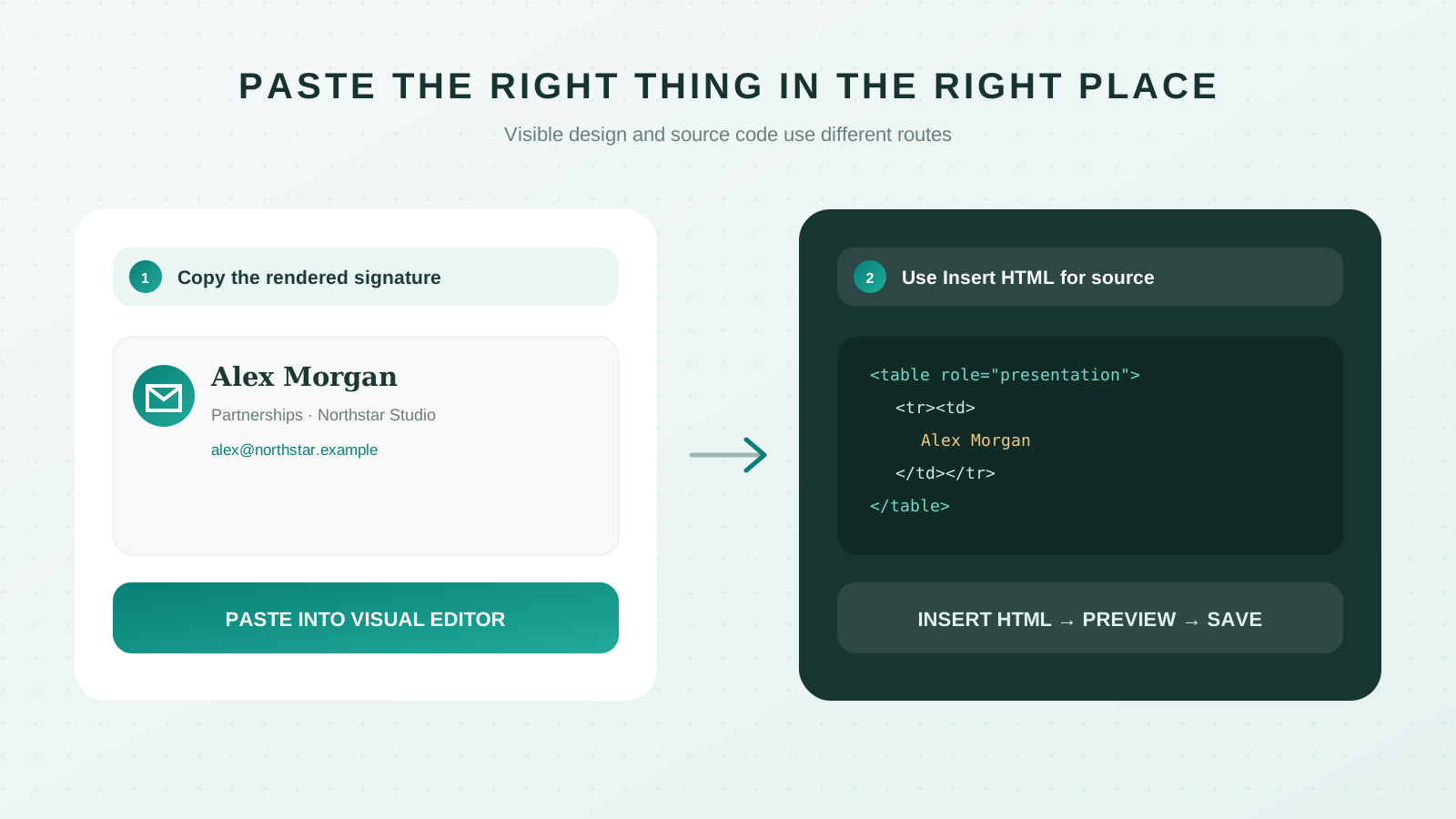
Email HTML should be simple: table-based structure, inline styles, common fonts and fixed image dimensions. The email signature best-practices guide explains the constraints that keep a design stable across clients.
Add a logo or another image
The signature editor can insert images, accept pasted images and add a hyperlink to an image. Zoho lists GIF, JPG, JPEG, BMP and PNG as supported formats for inserted signature images.
For HTML signatures, every remote image needs a working public URL. A file path from your computer cannot load for a recipient. Open the image URL in a private browser window: if it asks for a login or returns a web page instead of the image, it is not ready for the signature.
If you do not have a public image URL, use Zoho's inline image option. Keep the displayed logo modest and include the company name as text so the message remains understandable when a recipient blocks images. The HTML versus image signature comparison explains why the whole signature should not be a single picture.
Set a different signature for replies
Zoho can include or omit signatures on replies independently of new messages. In Settings > Signatures, enable Add signature to all my email replies when you want automatic reply signatures.
Then decide where the signature belongs:
- Above quoted text places it immediately under the new reply, where most readers expect it.
- Below quoted text places it after the previous conversation and can make the signature difficult to find.
You can also associate a compact signature specifically with replies. A short name, role and website keeps long threads readable while the full version remains available for first contact.
Remember that enabling signatures for replies and assigning a reply signature are two parts of the same setup. Zoho notes that the reply option must be enabled before the assigned reply signature is inserted automatically.
Use multiple signatures and aliases
Create each version with a unique name, then assign it to the relevant From address. When composing, use the Signature icon or Insert Signature option to replace the default for that one message.
A practical set might include:
- `Main — new messages` for regular business correspondence.
- `Compact — replies` for conversation threads.
- `Sales — booking link` for qualified sales conversations.
- `Support team` for a shared or support alias.
- A language-specific version for each market you serve.
Avoid creating several versions that differ only by a color or minor spacing. The purpose of multiple signatures is to match a sending identity or context. The professional signature examples can help you choose a meaningful structure for each version.
Use a signature in the Zoho Mail mobile app
Zoho's current composer documentation describes mobile signature insertion from the message editor. Open the Zoho Mail app, start a message, open More options and select Signature or use the signature icon shown in the composer. Choose the saved version you want to insert.
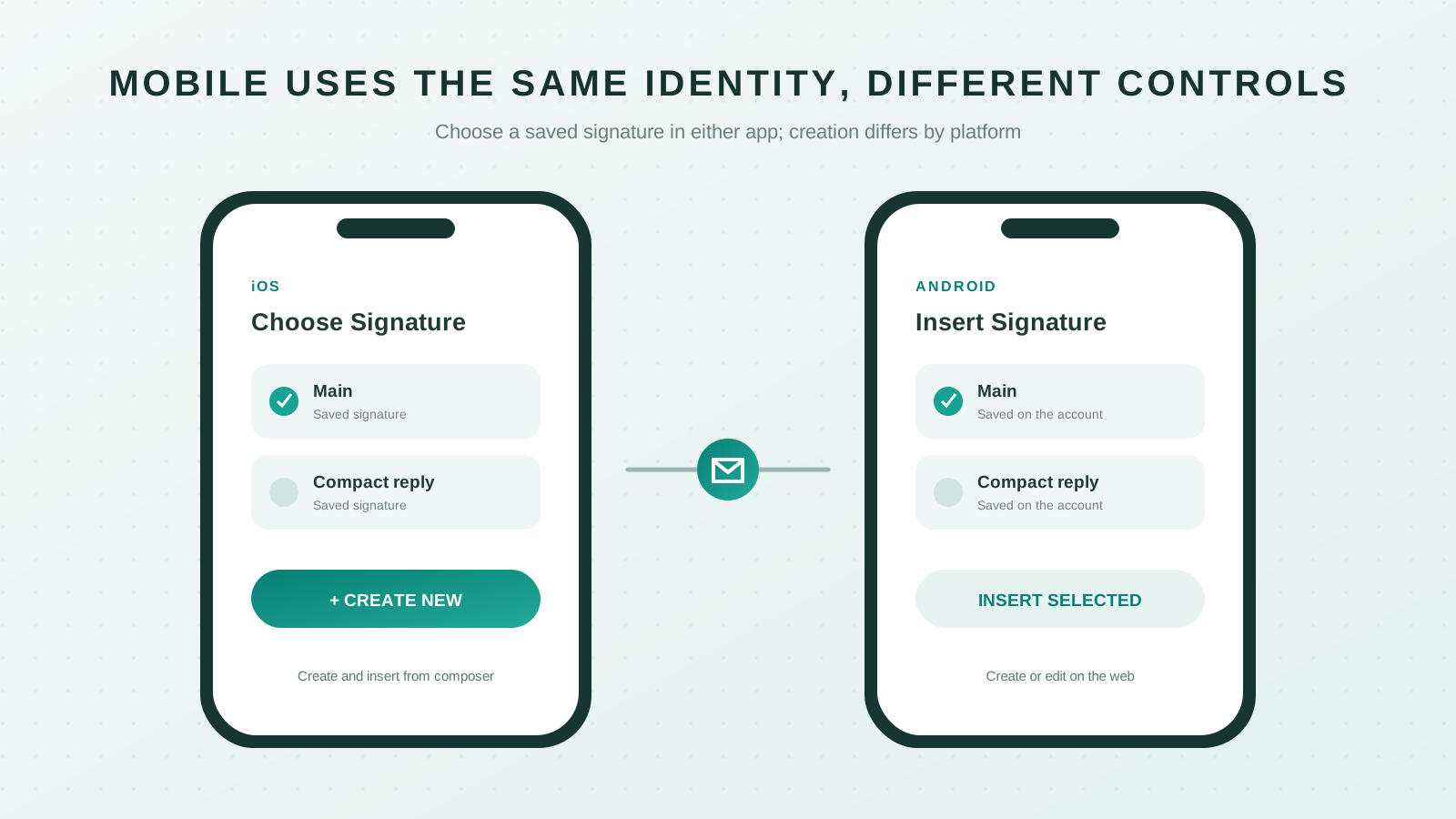
On iOS, Zoho documents creating a new signature from the composer: open the signature chooser, tap +, enter the content, choose whether it appears above or below quoted text, then save it.
Zoho currently says creating a new signature from the composer is not yet supported in its Android app. Android users can select an existing signature; create or edit the underlying version in Zoho Mail on the web when necessary.
Understand locked administrator signatures
An organisation administrator can assign a signature to an account. Zoho marks an admin-assigned signature with a lock icon. The user cannot edit that signature or associate another one with the same address.
If the editor is disabled or the address cannot be selected, check for the lock before troubleshooting the browser. Ask the Zoho Mail administrator to update the organisation-controlled signature or clarify which parts users are expected to manage.
This is useful for a mandatory legal line or corporate disclaimer, but personal contact details still need a clear owner. Avoid stacking a second large signature beneath an administrator block unless the organisation's policy calls for it.
Why a Zoho Mail signature is missing or broken
The signature is saved but does not appear. Associate it with the exact From address used in the draft. New messages and replies have separate association fields.
It appears in new messages but not replies. Enable Add signature to all my email replies, then assign the reply signature to the relevant address.
The signature is in the wrong place in a reply. Change its position to above the quoted text when you want it directly under the new message.
The editor is locked. An administrator assigned the signature. The organisation's admin must change it.
The logo is missing. Confirm that a remote image URL is public and returns an actual image, or insert the file as an inline image in Zoho.
Formatting disappears. Check that the composer is in Rich Text mode. Zoho states that plain-text messages do not display signature formatting, images or hyperlinks.
Raw HTML appears as text. Paste the visible rendered version into the normal editor or use Insert HTML for source markup.
For client-specific layout failures, follow the HTML signature troubleshooting checklist and test the sent message rather than relying only on the editor preview.
Test every identity before relying on it
Send one new message and one reply from every address or alias you use. Open the results in another provider and on a phone, then check:
- The signature matches the selected From address.
- The correct shorter or fuller version appears in replies.
- The signature sits above the quoted conversation when intended.
- Links open the right website, calendar or profile.
- The logo loads while essential contact details remain readable without it.
- The mobile app can insert the version you need.
- An administrator signature does not create an accidental duplicate.
Zoho's flexibility becomes useful once the signature, From address and message type are treated as three separate choices. Build the design once, assign it deliberately and verify each sending identity in a real message.