
How to add an email signature in Superhuman Mail
Set up a signature in Superhuman Mail for Gmail or Outlook, control replies and mobile messages, remove the Superhuman referral line and handle multiple signatures.
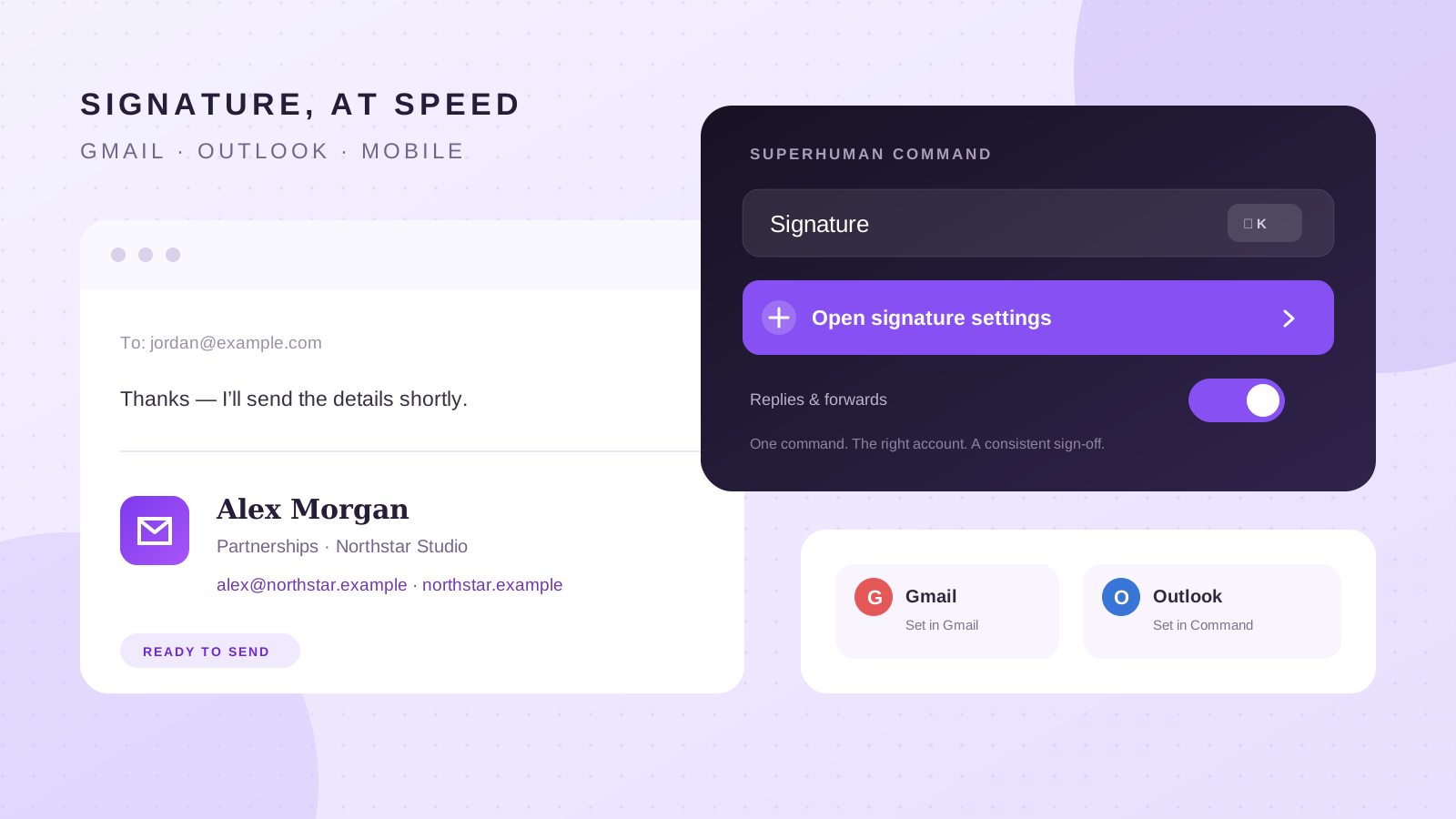
Adding a signature in Superhuman Mail starts with one question: is the connected account powered by Gmail or Outlook? Superhuman handles the two providers differently. Gmail accounts keep their signature in Gmail settings, while Outlook accounts can edit it from Superhuman Command.
This guide covers both paths, plus mobile behavior, reply settings, multiple-signature workarounds and the formatting problems that tend to appear after pasting a designed signature.
The short answer: Gmail and Outlook use different settings
| Account connected to Superhuman | Where to add the signature | Where reply settings live |
|---|---|---|
| Gmail or Google Workspace | Gmail Settings > General > Signature | Superhuman Command > Signature |
| Outlook or Microsoft 365 | Superhuman Command > Signature | The same Superhuman Signature panel |
| Superhuman mobile app | Uses the signature already configured for the account | Mobile respects the desktop reply setting |
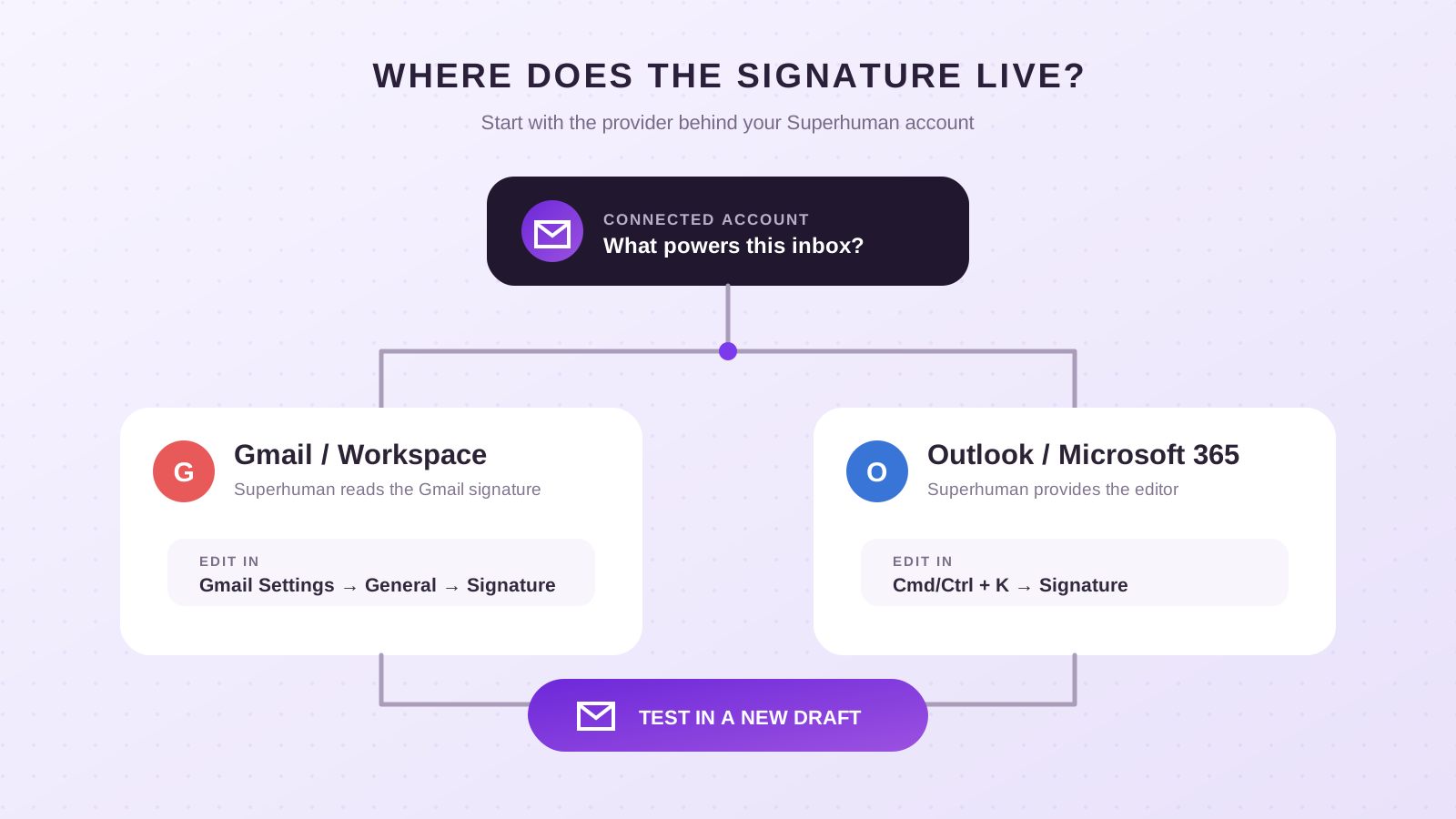
Superhuman's current signature documentation confirms this split. Do not spend time looking for the Outlook editor when the connected account is Gmail: Superhuman reads the Gmail signature instead.
Add a Superhuman signature for a Gmail account
For Gmail and Google Workspace accounts, create or edit the signature in Gmail:
- Open Gmail in a desktop browser.
- Click the gear icon, choose See all settings and stay on the General tab.
- Scroll to Signature and click Create new.
- Name the signature and enter or paste its content.
- Under Signature defaults, select it for new emails and for replies or forwards as needed.
- Scroll to the bottom and click Save Changes.
- Return to Superhuman and press Cmd+R on Mac or Ctrl+R on Windows. If it still does not update, quit and reopen the app.
Create a new draft in Superhuman after refreshing. The signature may be collapsed behind the ... at the bottom of the draft, so expand that area before deciding it is missing.
Superhuman also has its own control for whether the saved signature appears on replies and forwards. Open Superhuman Command with Cmd+K or Ctrl+K, search for Signature, and choose the behavior you want. This is separate from the content stored in Gmail.
Add a Superhuman signature for an Outlook account
Outlook-backed accounts can manage the signature directly in Superhuman Mail:
- Open Superhuman on desktop or web.
- Press Cmd+K on Mac or Ctrl+K on Windows.
- Type Signature and open the matching command.
- Paste or create your signature in the editor.
- Choose whether it should appear on replies and forwards.
- Open a new draft and expand the ... at the bottom to inspect the result.
If you already have a good Outlook signature, Superhuman recommends copying it from the Outlook web app. Copying from the Outlook desktop app can bring formatting that does not survive the move. The Outlook signature guide explains where the editor lives in each Outlook version.
Always paste the rendered signature, not HTML source. If you see tags such as `<table>` or `<td>` in the editor, undo the paste, return to the visual version and copy that instead.
Use a BrandSig design without losing the layout
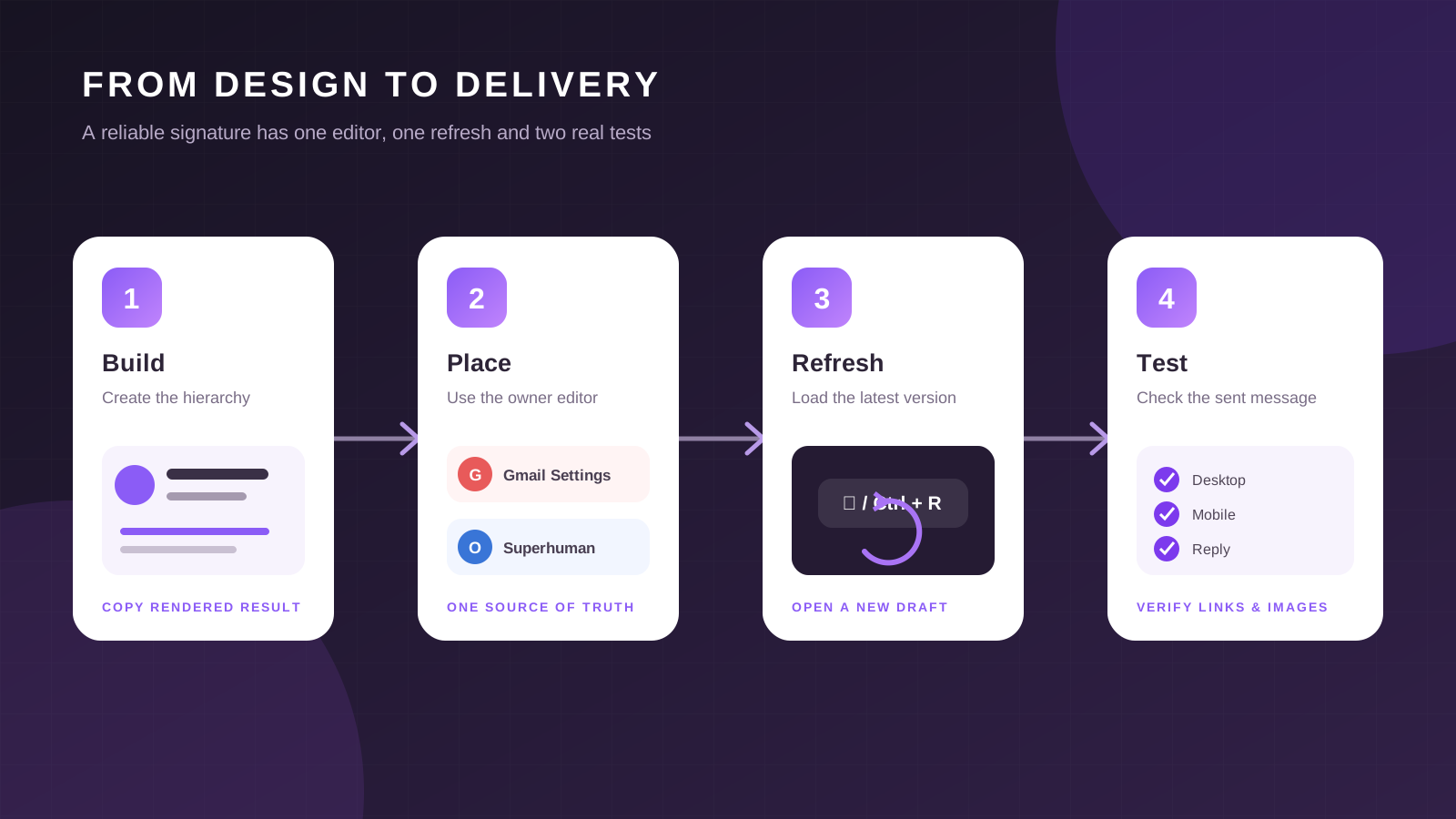
You can use BrandSig to create the content and visual hierarchy, then place the rendered result in the editor that owns your account's signature:
- Build the signature with your name, role, company, contact details and logo.
- Keep the layout compact enough for a phone screen.
- Copy the rendered signature.
- For Gmail, paste it into Gmail's Signature editor and save there.
- For Outlook, paste it into Cmd/Ctrl+K > Signature in Superhuman. If the layout changes, recreate the same structure in Outlook on the web and copy it from there.
- Send test messages before using it with customers.
Superhuman says third-party signature tools are not officially supported. That does not make every generated signature unusable, but it means complex formatting is outside their support path. Treat the design as a starting point, keep essential details as text, and be ready to simplify or recreate it in Gmail or Outlook web settings.
Avoid making the whole signature one image. When remote images are blocked, the recipient should still see your name, role, company and a usable link. The HTML versus image signature comparison shows why a mixed text-and-image layout is more resilient.
What happens on iPhone and Android
The Superhuman mobile app uses the signature configured for the connected account. You do not need to build a separate mobile signature, but you should still test it on a phone because wide layouts can wrap or overflow.
At the time of writing, Superhuman does not let you change the include-on-replies-and-forwards setting from mobile. The mobile app respects the choice made on desktop. Open Superhuman Command on desktop first if you want short replies to omit a large signature.
Superhuman's mobile Quick Reply also uses the signature set in Mail. This is convenient, but it can make a one-line notification reply much taller than expected. Test a Quick Reply as well as a normal message if you use both. See Superhuman's mobile reply documentation for the current behavior.
Remove “Sent via Superhuman”
Superhuman may add a Sent via Superhuman referral link in the signature area. You can remove it without deleting your own signature.
On desktop:
- Press Cmd+K or Ctrl+K.
- Search for Signatures.
- Turn off Include Sent via Superhuman.
On mobile:
- Pull down from the top of the inbox, then swipe right to open Superhuman Command — the gesture forms an L.
- Type Signatures.
- Turn off Include Sent via Superhuman.
Send a new test message after changing the setting. An older open draft may still contain content inserted before the change.
Use multiple signatures with Snippets
Superhuman currently supports one active signature rather than a menu of several signatures. Its documented workaround is to use Snippets:
- Remove the default signature from Gmail settings or the Superhuman Signature panel for Outlook.
- Create one Snippet for each signature you need.
- Insert the appropriate Snippet while composing.
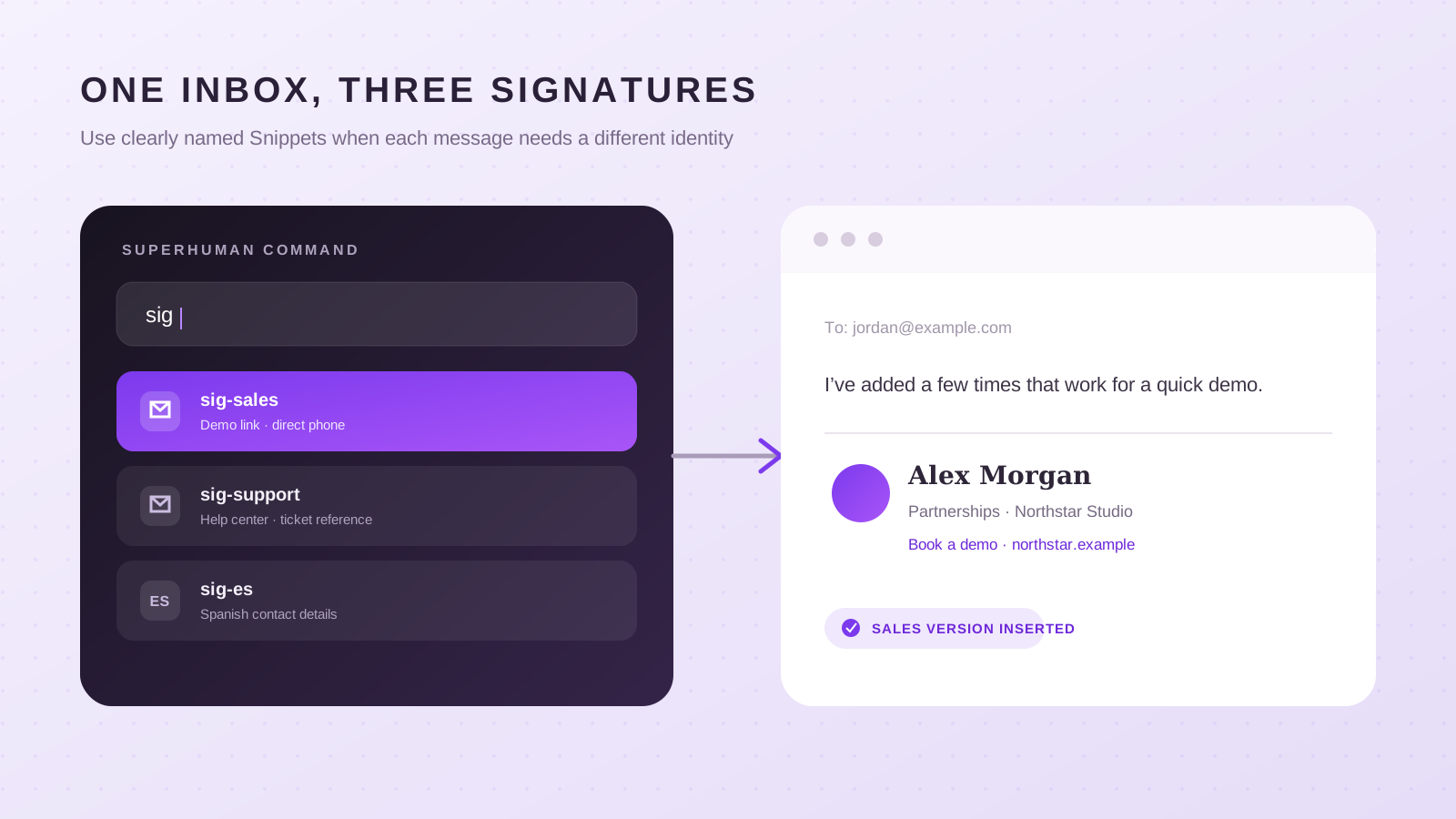
This works well when you need separate versions for sales, recruiting, support or different languages. Name the Snippets clearly so the choice stays fast, such as `sig-sales`, `sig-support` and `sig-es`.
There is a tradeoff: Snippets are manual. A default signature is safer when you almost always use one identity; Snippets are better when choosing the wrong identity would be more harmful than occasionally forgetting to insert one.
Fix a missing image or broken formatting
The Gmail signature does not update in Superhuman. Save the change at the bottom of Gmail settings, wait briefly, then refresh Superhuman with Cmd+R or Ctrl+R. Reopen the app if necessary.
The signature seems missing from the draft. Click the ... at the bottom. Superhuman can collapse the signature while composing.
A Gmail image is missing. Edit the signature in Gmail, remove the broken image and insert it again with Gmail's image button. Save, refresh Superhuman and send a new test.
An Outlook logo or link breaks after pasting. Copy the signature from Outlook on the web instead of the desktop application. Superhuman identifies this as the more reliable source.
Spacing changes after paste. Hidden formatting from another application can create extra gaps. Delete the signature and rebuild a simpler version directly in Gmail, Superhuman or a clean Google Doc. Superhuman's signature troubleshooting page recommends this approach.
The layout is too wide on mobile. Use fewer columns, shorten long labels and avoid fixed-width elements. Work through the HTML signature troubleshooting checklist if the structure still collapses.
A practical signature for Superhuman
A fast email client benefits from a signature that is equally direct:
Alex Morgan
Partnerships · Northstar Studio
alex@northstar.example · northstar.example
Add a phone number when calls are part of the workflow. Add one calendar or campaign link only when it helps the reader take the next expected action. The professional email signature examples show several structures without turning the signature into a second email.
Keep the visual system simple: one accent color, one logo, readable text and enough spacing to separate the signature from the message. Superhuman's composer supports basic formatting, but font size cannot currently be changed for outgoing mail inside Superhuman. Build around that constraint rather than depending on tiny labels or oversized headings.
Test the full sending workflow
Before relying on the signature, send a new message and a reply from desktop, then repeat on mobile. Check that:
- The right signature appears for the connected Gmail or Outlook account.
- Reply and forward behavior matches the desktop setting.
- The Sent via Superhuman line is present or removed as intended.
- Links open the correct website, profile or booking page.
- The signature remains useful when images are hidden.
- Long lines wrap cleanly on a phone.
- Quick Reply does not attach more content than you expect.
Superhuman makes signatures feel like part of the sending workflow, but the provider still determines where the content is stored. Configure Gmail in Gmail, configure Outlook through Superhuman, and test both desktop and mobile before the signature becomes invisible infrastructure.