
How to add a signature in Outlook (all four versions)
Outlook is four different programs sharing a name. Here is where the signature setting lives in each one, how to paste HTML without it collapsing, and the reply setting almost everyone misses.
Adding a signature in Outlook should take ninety seconds. It usually doesn't, because "Outlook" is now four different programs that share a name and disagree about almost everything else. The steps you find in a search result are frequently the right steps for the wrong Outlook.
So start by working out which one is in front of you. Then follow the section that matches. The last three sections cover the parts nobody tells you about: getting HTML in without it collapsing, making the signature show up on replies, and confirming it looks the same for the person receiving it.
First, work out which Outlook you have
There are four, and the signature setting lives somewhere different in each.
| Version | How to recognise it | Where the signature setting lives |
|---|---|---|
| Classic Outlook (Windows) | Has a File menu in the top-left corner | File > Options > Mail > Signatures |
| New Outlook (Windows/Mac) | No File menu; a gear icon top-right; toggle labelled "New Outlook" | Settings > Accounts > Signatures |
| Outlook on the web | Runs in a browser tab at outlook.office.com or outlook.live.com | Settings (gear) > Mail > Compose and reply |
| Outlook mobile (iOS/Android) | The phone app | Profile icon > Settings > your account > Signature |
If you see a File menu, you are in classic Outlook and everything still works the old way. If you don't, you are in new Outlook, which is essentially the web app in a desktop window — same settings, same limitations, same HTML handling.
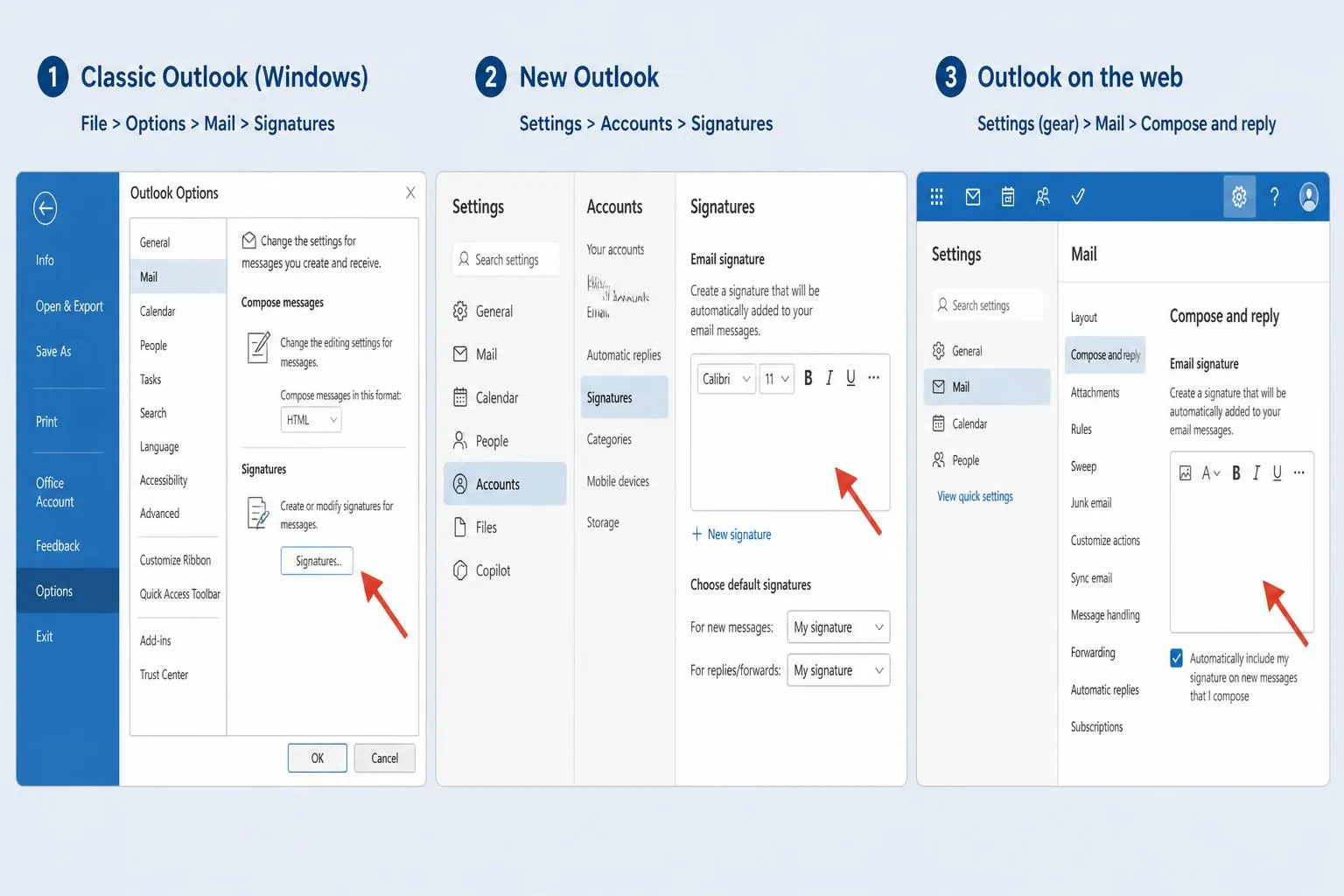
Classic Outlook for Windows
The full-featured one, and the only version that stores signatures as files on your machine.
- Open File > Options > Mail, then click the Signatures button.
- Click New, name the signature something you will recognise later — "External" and "Internal" beats "Signature 1" and "Signature 2".
- Build or paste the signature into the edit box.
- On the right, under Choose default signature, pick the email account it belongs to, then set New messages and Replies/forwards.
- Click OK. Not the X. Outlook discards unsaved signature edits without asking.
One detail worth knowing: classic Outlook writes each signature to `%APPDATA%\Microsoft\Signatures` as three files — `.htm`, `.rtf` and `.txt`. If you need a signature to be exactly right, edit the `.htm` file directly in a text editor, save, and restart Outlook. That bypasses the built-in editor entirely, which is the single most effective trick in this article.
New Outlook for Windows and Mac
New Outlook dropped the File menu and moved signatures into the settings pane.
- Click the gear icon in the top-right corner.
- Go to Accounts > Signatures.
- Click New signature, name it, and build it in the box.
- Under Select default signatures, choose one for new messages and one for replies/forwards.
- Click Save.
Signatures here sync with your Microsoft 365 mailbox, so the same signature appears in new Outlook, the web app, and on other machines you sign into. That is genuinely useful. The trade-off is that the editor is more restrictive than the classic one, and there is no local `.htm` file to edit as an escape hatch.
Outlook on the web
Nearly identical to new Outlook, with one extra step to watch.
- Click the gear icon, then Mail > Compose and reply.
- Create the signature under Email signature.
- Below the editor, tick Automatically include my signature on new messages I compose and, if you want it, on messages I forward or reply to.
Those two checkboxes are separate. Ticking the first and skipping the second is why so many people report that their signature "only works sometimes".
Outlook on iOS and Android
The mobile apps only support plain text. There is no way around this — no HTML, no logo, no formatting.
Open the app, tap your profile icon, then Settings, then the account, then Signature. Replace "Sent from Outlook for iOS" with something deliberate: two or three lines of plain text with your name, role and phone number. That default line does nothing for you, and every recipient has seen it ten thousand times.
Do not attempt to paste your full HTML signature into the mobile field. You will get a wall of stripped text.
Getting HTML in without Outlook mangling it
This is where most attempts fail. Copy an HTML signature from a web page, paste it into Outlook's signature box, and the layout collapses: columns stack, blank lines appear, fonts revert, the logo balloons to full size.
The cause is that Outlook's editor is not a browser. Classic Outlook renders and edits mail using the Microsoft Word engine, which has its own opinions about HTML and applies them aggressively on paste.
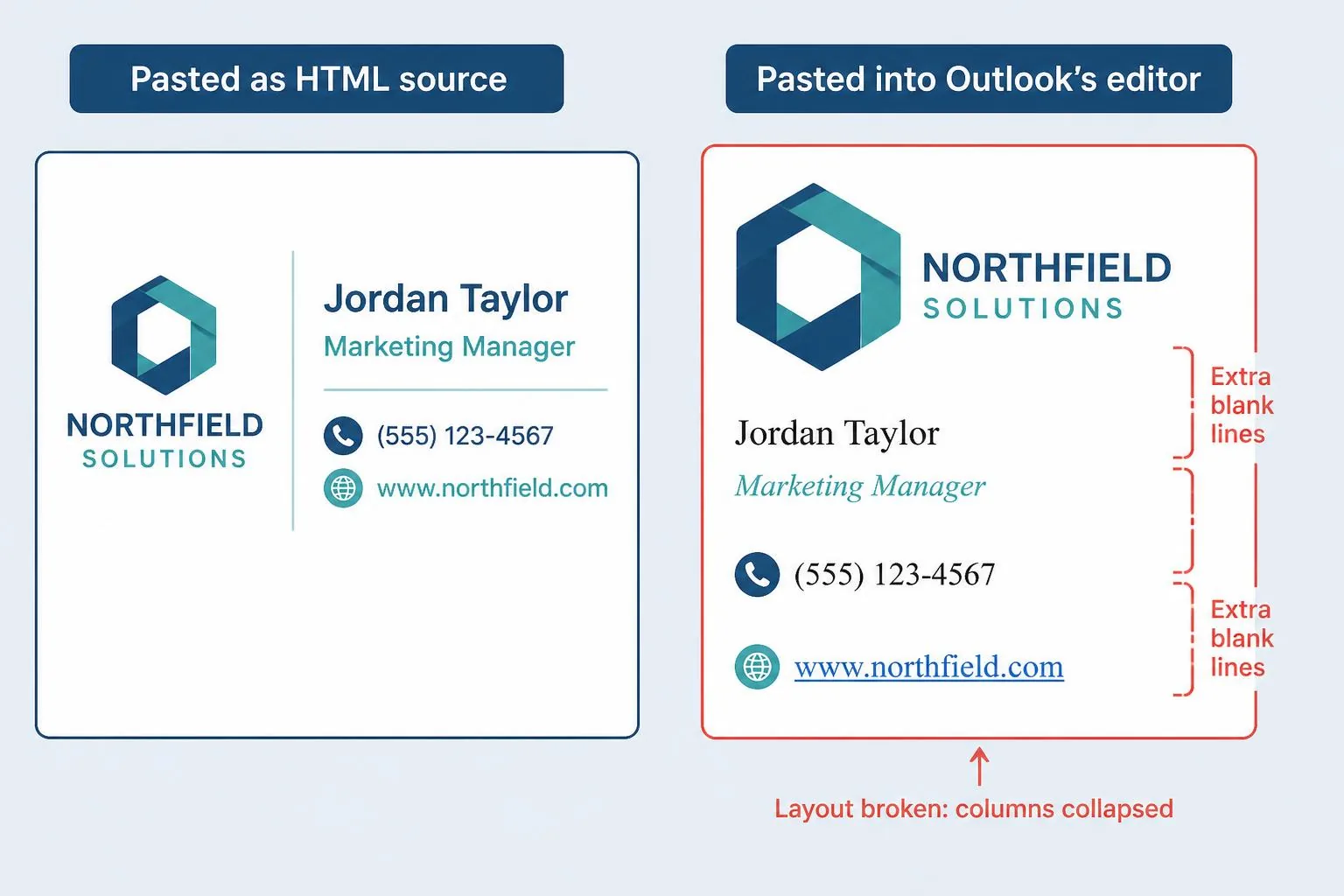
Three ways to avoid it, in order of reliability:
Copy from a rendered page, not from source. Open the signature in a browser so it displays as a signature, select it with your cursor, copy, and paste into Outlook. You are copying the rendered result and its inline styles, not raw markup for Outlook to reinterpret. This is what the BrandSig editor's copy button does for you — it puts rich HTML on the clipboard rather than a block of code.
Edit the `.htm` file directly. Classic Outlook only. Create an empty signature, close Outlook, find the matching `.htm` file in `%APPDATA%\Microsoft\Signatures`, replace its contents with your markup, and reopen Outlook. Nothing gets reinterpreted.
Keep the markup boring. Nested tables, fixed widths, inline styles, no flexbox, no CSS grid, no external stylesheet. Outlook supports roughly the HTML of 1999, and a signature built to that standard survives the paste more or less intact. We go through the specific rules in email signature best practices.
If it still breaks after all three, the problem is in the markup rather than the paste, and the troubleshooting guide walks through the usual suspects.
The setting everyone misses: replies and forwards
Every version of Outlook treats "new messages" and "replies/forwards" as separate settings, and several of them default the second one to none.
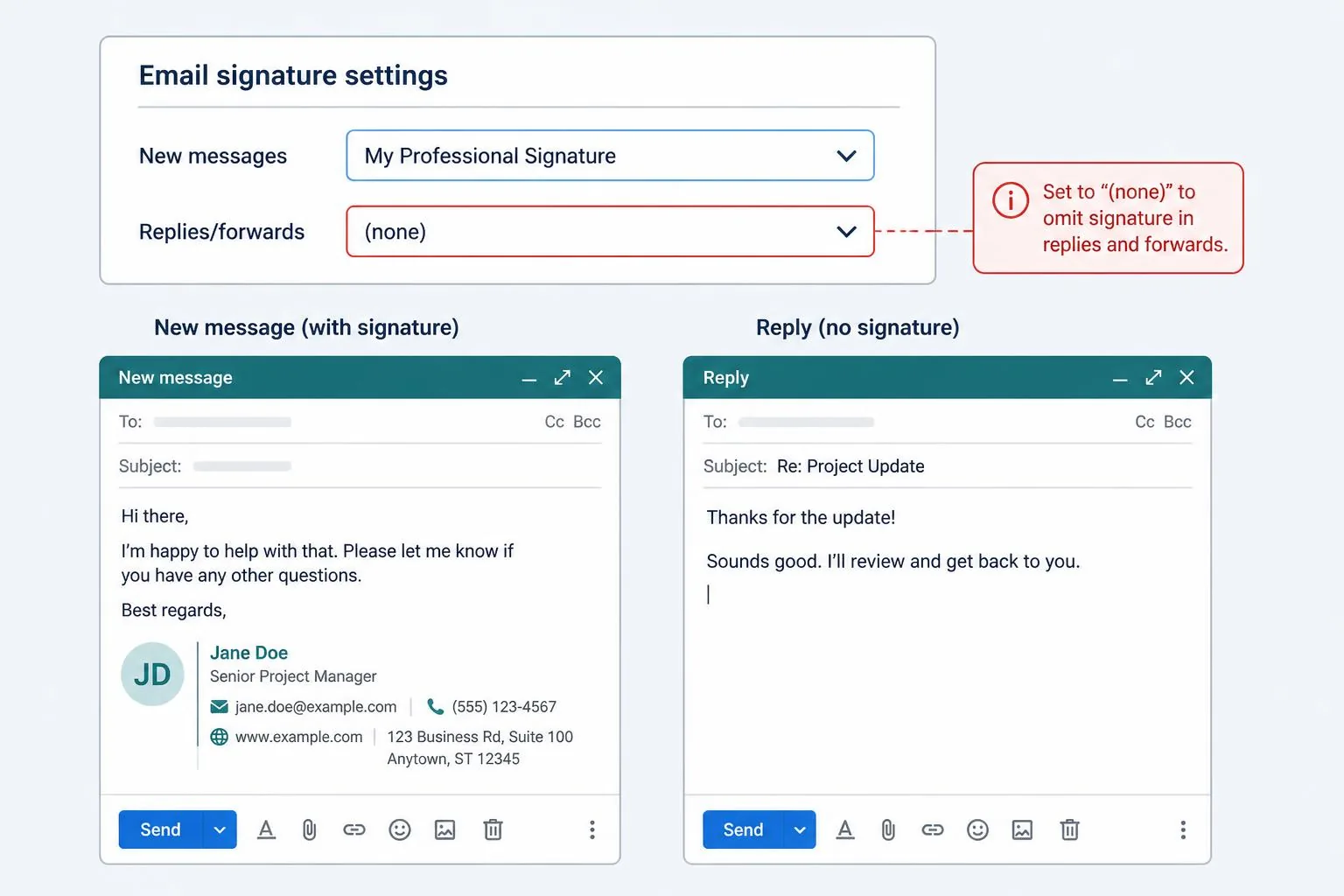
Whether you want a signature on replies is a real question, not an oversight to correct. In a long internal thread, repeating a full signature on every message is noise. The usual compromise is a full signature on new messages and a two-line version — name and phone — on replies. Create both, assign each to its dropdown, and stop thinking about it.
What you should not do is leave replies blank without deciding. A cold prospect who replies twice and then gets a message with no contact details anywhere has to scroll back through the thread to find your number, and some of them won't.
Why it looks right to you and wrong to them
Outlook shows you the signature in the same engine that created it. Your recipient probably isn't using Outlook. Gmail, Apple Mail and Outlook itself each render the same markup differently, and Outlook is the strictest of the three.
Two failure modes account for most complaints:
Images arrive as attachments. If you inserted a logo from your hard drive, Outlook embeds it in the message rather than linking to it. Recipients see a paperclip and a file called `image001.png`, and spam filters take a dim view of the pattern. Host every image at a public HTTPS URL instead, and set explicit `width` and `height` attributes on the tag.
The whole signature is one image. It looks perfect in your editor and disappears entirely for anyone whose client blocks remote images by default, which is most of them on first contact. The full argument is in HTML vs image signatures, but the short version is that no essential information should live inside a picture.
A checklist before you call it done
- Send the signature to yourself and open it in Gmail on the web, Outlook desktop, and a phone.
- Confirm your name, title and phone are readable with images turned off.
- Click every link, including the logo. Broken and mistyped links in signatures are astonishingly common.
- Check the total width. Anything over about 400px will overflow on a phone.
- Confirm the reply signature is set, or deliberately not set.
- Check the whole thing against the professional email signature guide if you are building it from scratch.
Ninety seconds for the setting. The other twenty minutes go to making sure it survives the trip.
Related reading
- HTML email signature not displaying correctly? Fix it here — the diagnostic version of this article, for when the paste worked and the render didn't.
- Email signature best practices: the rendering standards — the markup rules that keep Outlook from rewriting your layout.
- The professional email signature guide — what to put in a signature before you worry about where to paste it.