
How to add an email signature in Mailbird
Edit a Mailbird identity, paste a professional signature, add a logo and keep different accounts from using the wrong contact details.
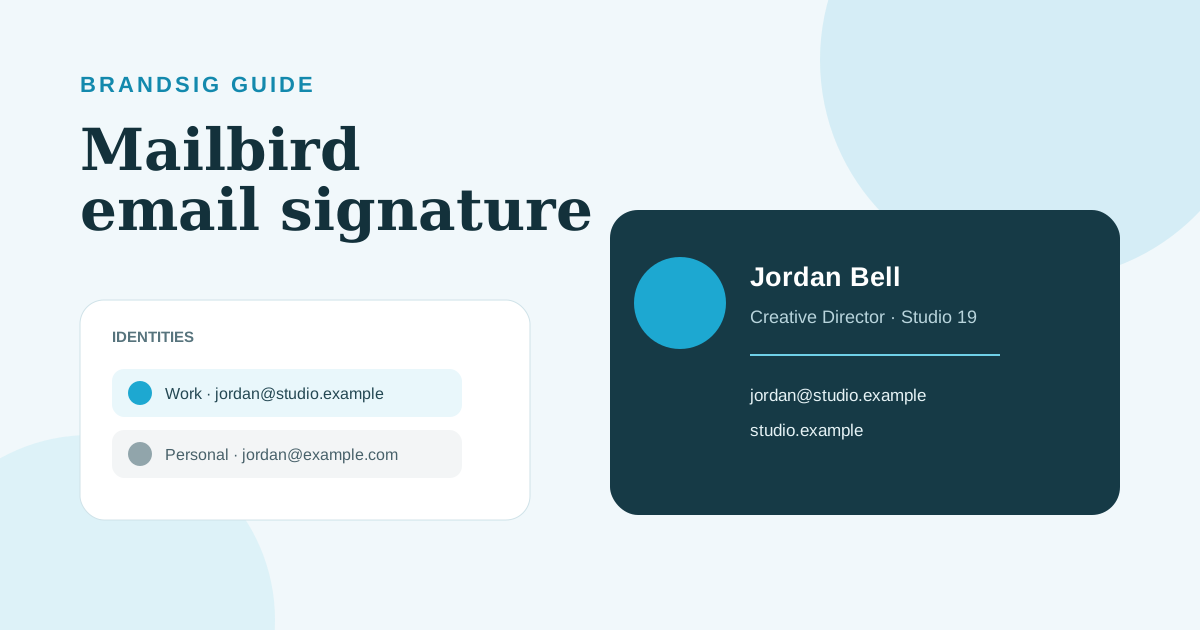
Mailbird manages signatures inside identities. An identity combines the name, email address and signature used in the From field, so the right place to edit is not a general composer preference.
This guide shows the current identity workflow, image options and the checks that prevent a work signature from being attached to a personal account.
Add a signature to a Mailbird identity
- Open the Mailbird menu in the upper-left corner.
- Choose Settings.
- Select Identities.
- Double-click the identity you want to edit.
- Add or paste the signature in the editor.
- Save the identity and open a new message.
Mailbird's official signature instructions use this same identity-based path and provide an insert-image control in the editor.
Understand identities before editing
An email account can have more than one sending identity, and Mailbird can contain several accounts. Select the exact identity that appears in the From field. A signature saved under another identity will not automatically follow.
Match the visible name, reply address and signature details. If the signature says Northwind Sales but the active From address is a personal mailbox, the message looks suspicious even when the design is polished.
Paste a BrandSig signature
Build the design in BrandSig, copy the rendered signature and paste it into the identity's signature editor. Use the visual result rather than copying a whole webpage or unsupported stylesheet.
Keep the layout compact, with real text for your name and contact details. Use a table-based structure and inline styles when HTML is involved. Modern webpage layouts can collapse when Mailbird or the recipient's client sanitizes the message.
Save, close the settings window and start a fresh message. Existing drafts may retain the old signature.
Add an image or company logo
Click the image control in the signature editor. Mailbird can add an image from local storage, and current support documentation also describes image insertion through the formatting toolbar.
Prepare the asset first: crop unused whitespace, use a transparent PNG or suitable JPEG and keep both dimensions and file weight modest. Do not insert a 2000-pixel logo and shrink it only in the editor.
Add a text company name beside or beneath the logo. Some recipients block images, and a visual-only signature becomes an empty box in that state.
Add links that remain useful
Link the company name, website label or booking text through the editor. Use absolute HTTPS URLs and test the destination in a private browser window.
Avoid making the entire signature one linked image. That produces only one click target, prevents phone numbers from being tapped and makes the content inaccessible when the image is blocked. The HTML versus image comparison explains the practical difference.
Manage several accounts
Repeat the identity workflow for each account. Keep a small checklist of the name, role, phone, website and logo used by each identity. This is especially important when Mailbird combines work and personal inboxes.
Use fewer variants than you think you need. A full work version and a compact alternative are easier to maintain than several campaign designs containing dates or offers that expire.
Before sending, glance at the From field. Signature automation reduces repetitive work but cannot determine whether you chose the intended identity.
Use a compact reply signature
If your Mailbird setup or account configuration allows choosing a different identity or signature while composing, use a smaller version for long reply chains. Keep name, role and website; remove the large logo, social row and promotional banner.
When automatic reply-specific selection is unavailable for your configuration, replace the full version manually in important threads or use a single compact default that works in both new messages and replies.
Fix common Mailbird signature problems
The signature is missing. Confirm that it is saved under the active identity, then open a fresh draft.
The wrong details appear. Check the From identity before editing the signature content.
The logo is huge. Resize the source file, not only its displayed dimensions.
Formatting changes after paste. Remove unsupported CSS, extra nested elements and web fonts. Use the signature troubleshooting checklist.
The design appears twice. Your email provider or organization may append a second server-side signature. Send from webmail to isolate that layer.
A local image does not reach recipients. Reinsert it through the editor and verify the received message rather than relying on the draft preview.
Run a three-client test
Send to Gmail, Outlook and a phone. Check links, image blocking, wrapping and the selected From identity. Reply once to see how much space the signature takes in a thread. Mailbird's identity model is reliable when every public sending address has an intentional, tested version.