How to add an email signature in eM Client
Create, import and assign eM Client signatures for new mail, replies and forwards, including synced Gmail or Exchange signatures and HTML files.
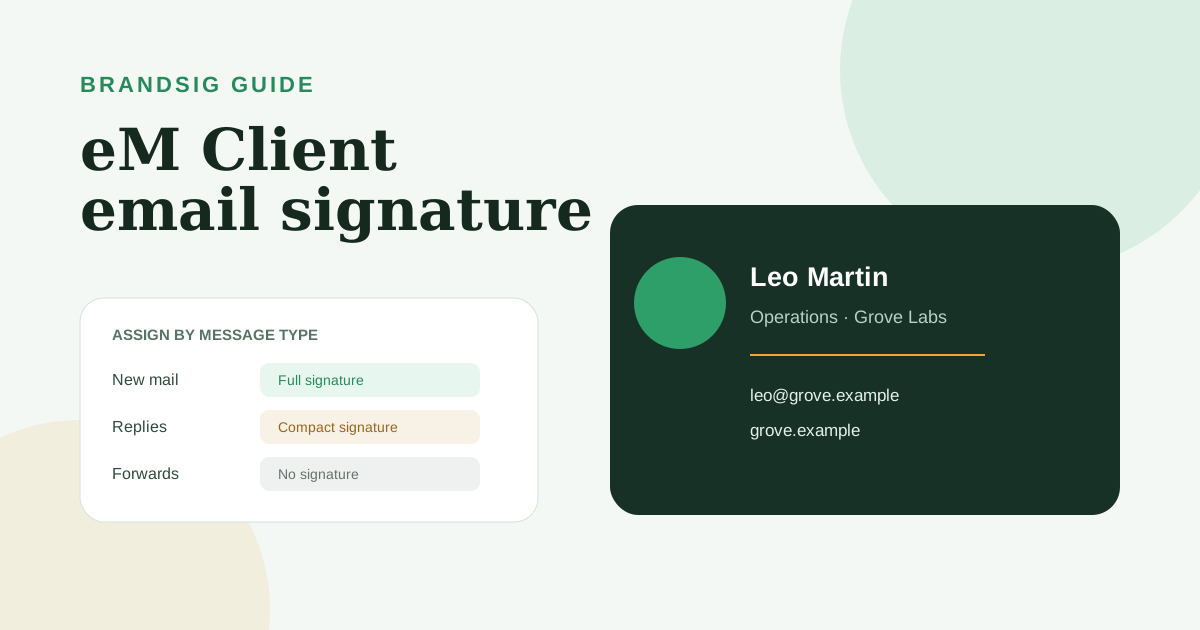
eM Client can create any number of signatures, import or export HTML files and assign different versions to new messages, replies and forwards. It can also synchronize one server signature for supported Gmail, Exchange and IceWarp accounts.
That flexibility is useful, but the editor and the account assignment are two separate steps. Creating a signature does not automatically make it the default.
Where eM Client stores signature settings
Open Menu > Settings > Mail > Templates and Signatures. The upper area assigns signatures to accounts and message types. The Signatures button opens the library where you create, edit, import and delete the actual designs.
eM Client's current signature documentation also describes HTML import and export, reply position, server synchronization and mobile transfer by QR code.
Create a new signature
- Open Menu > Settings > Mail > Templates and Signatures.
- Click Signatures.
- Select New.
- Give the signature a descriptive name.
- Enter and format the content.
- Confirm and save it.
Use names such as Company — new mail or Compact — replies. The name is an internal label and should explain when the version is used.
Import an HTML signature
In the Signatures window, click Import and choose an .html file. eM Client can also save a signature back to HTML with Save as, which is useful for backup or controlled editing.
Create the design in BrandSig and use compatible email HTML: table layout, inline styles, common fonts, fixed image dimensions and absolute HTTPS links. If a browser-only feature is essential to the design, it will probably fail in at least one email client.
After import, inspect the preview and send a real message. The import preview shows what eM Client accepted, not how Outlook or Gmail will render it.
Assign signatures to an account
Return to Templates and Signatures and select an email account. Choose a signature independently for:
- New messages.
- Replies.
- Forwards.
You can use the same version in all three places or keep a full version for new conversations and a compact one for replies. Repeat the choices for every account in eM Client.
If no signature appears, this assignment screen is the first place to check. A saved design that is not selected for the active account remains available only for manual insertion.
Set the position in replies
Use Signature position to place the sign-off before or after quoted text. Choose before quoted text for most business replies so the signature sits directly below your new message instead of at the end of the entire conversation.
This setting is independent of which reply signature is selected. Check both when a correct design appears in the wrong location.
Synchronize Gmail or Exchange signatures
For supported accounts, eM Client displays a server signature marked as synchronized. Current documentation names Gmail, Exchange and IceWarp support. Edit the synchronized signature to make the change available to the server and other compatible eM Client installations.
Only one signature per account can be synchronized at a time. Additional local signatures remain local. Decide which version is the canonical server signature before making edits in several places, or one client can overwrite another's changes.
Transfer signatures to eM Client mobile
Recent eM Client documentation includes QR Export for transferring templates and signatures to the mobile app. In the signature library, select the version and use the QR export option, then scan it with the eM Client mobile app.
Treat the mobile copy as a version that still needs testing. Wide images and multi-column layouts can look reasonable on desktop and overflow a narrow composer.
Choose a signature while composing
The composer has a signature control for inserting another saved version. This is useful for occasional language or campaign variants. It should not replace correct account defaults for everyday work.
Before switching, check the From account. A manual signature can contain an email address or company identity that conflicts with the actual sender.
Remove the eM Client product line
In Templates and Signatures, eM Client provides a setting for attaching the “Sent from eM Client” signature to every message. Disable it when you already use a professional signature and do not want a second product line.
If the product text persists after editing a saved signature, look for this separate preference rather than deleting content from the design again.
Troubleshoot eM Client signatures
The signature exists but is not automatic. Assign it to the active account under new mail, replies or forwards.
The wrong version appears in replies. Check the reply dropdown and the account selected above it.
An imported HTML design changes. Remove modern CSS and follow the HTML signature troubleshooting guide.
A server signature changed unexpectedly. Confirm which version is synchronized. Only one signature per account can sync.
The sign-off appears beneath the conversation. Change Signature position to before quoted text.
Two sign-offs appear. Disable the separate “Sent from eM Client” option and verify that the mail server is not appending another signature.
Test the complete assignment matrix
For each important account, send a new message, a reply and a forward. Confirm the chosen version, reply position, image loading and links. eM Client works best when the signature library, per-account assignments and server synchronization are treated as three distinct layers.