
How to create organization-wide email signatures in Microsoft 365
Build an Exchange Online mail-flow rule for company signatures or disclaimers, use directory tokens, prevent duplicates and understand the server-side limits.
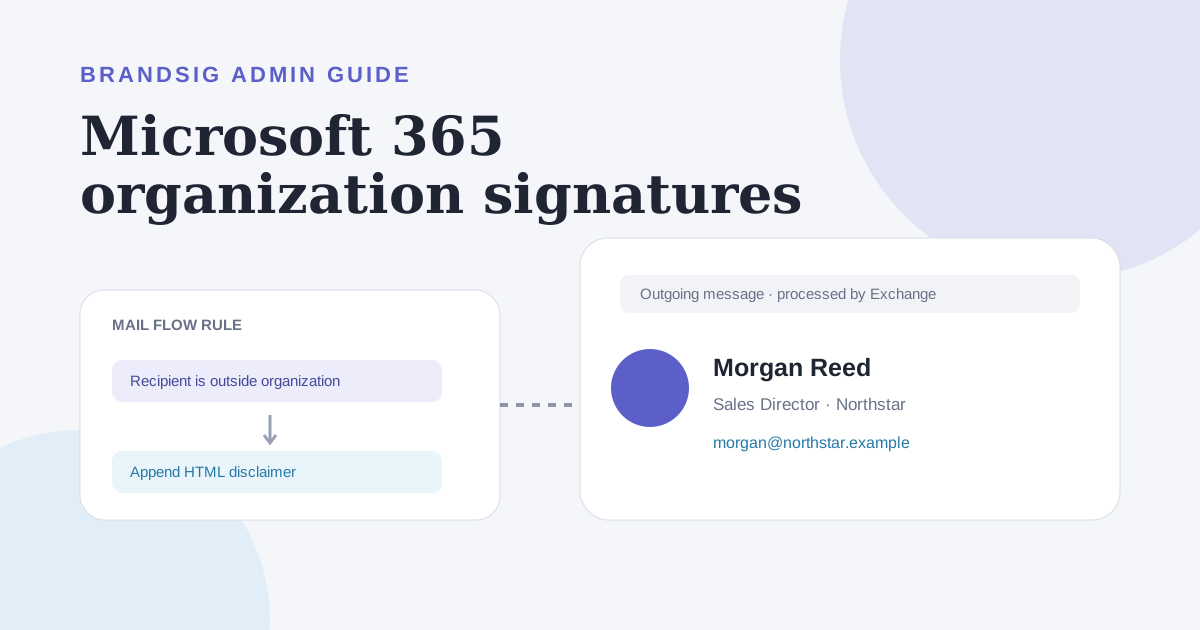
Microsoft 365 can append an organization-wide signature through an Exchange Online mail-flow rule. Microsoft calls the inserted content a disclaimer even when it contains a person's name, title, phone number and company logo.
The feature is useful for consistent legal text and basic branding, but it has important limits: users do not see the server-side signature while composing or in Sent Items, and Exchange cannot place it directly beneath the newest reply.
Decide whether a mail-flow signature fits
| Requirement | Exchange mail-flow rule |
|---|---|
| Add standard text to outbound mail | Good fit |
| Personalize from directory fields | Supported with tokens |
| Show signature while composing | Not supported |
| Insert below the newest reply | Not supported |
| Embed an image in the message | Not supported; use a remote image |
| Cover mail sent through Exchange Online | Good fit when the message crosses the rule |
Microsoft's current admin guide lists these limitations. Use a client-side signature when users need to preview and edit the sign-off; use a transport rule when centralized enforcement matters more.
Create the mail-flow rule
- Sign in to the Exchange admin center.
- Open Mail flow > Rules.
- Select Add a rule > Apply disclaimers.
- Give the rule a clear name.
- Choose the messages it should apply to.
- Select Apply a disclaimer to the message and append a disclaimer.
- Enter the HTML or text.
- Choose a fallback action.
- Add exceptions and set the rule to test mode first.
- Review, save and verify with controlled messages.
For external-only branding, use a condition that identifies recipients outside the organization rather than applying the rule to every incoming and outgoing message.
Build compatible signature HTML
Create the visual source in BrandSig, then adapt it to simple email HTML. Exchange disclaimer text supports HTML and inline CSS, but the full content has a maximum length and still passes through receiving clients with their own rendering rules.
Use a compact table, inline styles, common fonts and public HTTPS images. Keep the company name and contact details as text. Avoid scripts, forms, web fonts and interactive elements.
Microsoft's detailed Exchange Online disclaimer documentation provides the supported workflow and token list.
Personalize with directory tokens
Exchange can replace tokens with sender attributes, including display name, first and last name, title, department, company, phone, mobile phone, address fields and email address.
Before launch, audit the underlying directory data. Microsoft notes that if a variable cannot be populated, the rule can skip the line containing it. Missing or inconsistent titles and phone numbers therefore become visible layout defects.
Normalize values in Microsoft Entra ID or the authoritative directory before blaming the HTML. A template is only as accurate as the data it renders.
Add a remote logo
Mail-flow signatures cannot embed an image in the message. Reference a public HTTPS image with an HTML image element and explicit dimensions. The receiving client may block remote images, so add meaningful alternative text and preserve the company name as live text.
Host the asset on a stable domain you control. Do not use a SharePoint or OneDrive URL that requires authentication or expires. Test the direct URL in a private browser window and verify that it returns an image content type.
Prevent repeated signatures in a thread
Because a transport rule processes every matching message, it can append another copy on every reply. Microsoft's documentation recommends an exception that searches the subject or body for unique text from the existing disclaimer.
Add an unobtrusive unique marker in the HTML, then create an exception when that marker is already present. Test replies and forwards to confirm the marker survives the clients your organization uses.
This reduces duplication but does not move the signature beside the newest reply. The server-side rule still works on the complete message body.
Choose the fallback action carefully
If Exchange cannot insert the disclaimer, often because a message is encrypted, the rule needs a fallback:
- Wrap creates a new message containing the original as an attachment and adds the disclaimer outside it.
- Ignore delivers the original message without the signature.
- Reject returns a non-delivery report.
The correct choice depends on legal requirements and user experience. Microsoft warns against using Wrap on rules that affect incoming messages from external senders because it can interfere with Safe Attachments scanning. Scope the rule to outbound mail when that is the actual goal.
Understand what users will see
The server applies the signature after the message leaves the composer. Users cannot see it while writing and Microsoft says it does not appear in their Sent Items copy. Support teams need to know this before launch or they may report the feature as broken.
The signature also cannot be inserted directly beneath the latest reply or forward. It appears at the bottom of the processed conversation. For a natural reply signature, deploy a client-side solution or combine a short server disclaimer with user signatures.
Test before enforcement
Use Test without Policy Tips or another appropriate test mode before Enforce. Send matching and non-matching messages in both HTML and plain text. Test:
- An external new message.
- An internal message that should be excluded.
- A reply and forward.
- A sender with complete directory fields.
- A sender with an optional field missing.
- An encrypted or protected message.
- A message with the existing unique marker.
Inspect the received source, remote image behavior and the rule logs.
Common Microsoft 365 signature problems
The signature is at the bottom of the thread. This is a documented server-side limitation, not an HTML positioning bug.
Users cannot see it in Sent Items. Exchange adds it in transport; the sender's stored copy does not show it.
A personalized line is missing. Audit the directory attribute used by the token.
Every reply gets another copy. Add and test an exception for unique signature text.
The logo is blank. Use a public HTTPS source and retain text fallbacks.
An encrypted message is wrapped or rejected. Review the selected fallback action and rule scope.
Use two layers when necessary
Many organizations get the best result from a compact client-side personal signature plus a server-side legal footer. The user sees the personal version while composing and it sits beside the latest reply; Exchange guarantees the required policy text on matching outbound mail.
Keep each layer responsible for a different job to avoid duplication. BrandSig can provide the approved visual template, while the Exchange rule enforces only what transport rules can reliably deliver.