
How to add an email signature in Spark Mail
Create and sync Spark signatures on Mac, Windows, iPhone and Android, paste HTML, choose account defaults and remove the Spark tagline.
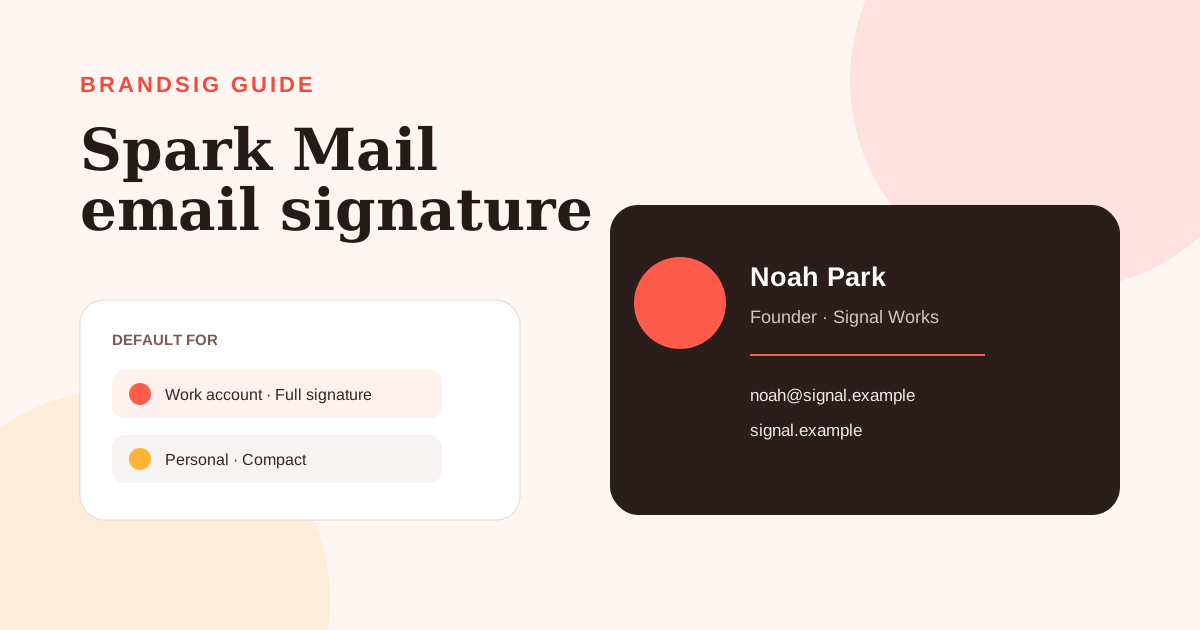
Spark Mail can keep several signatures, assign a default to each account and make the same set available across desktop and mobile. It also accepts HTML on Mac, Windows and iOS, which makes it a practical home for a designed BrandSig signature.
The menus differ slightly by platform. This guide follows Spark's current desktop, iOS and Android settings and explains how to switch versions inside a draft.
Spark signature features by platform
| Platform | Create location | HTML source | Images |
|---|---|---|---|
| Mac and Windows | Settings > Composer > Signatures | Yes | Through rendered HTML |
| iPhone and iPad | Settings > Signatures | Yes | Paste HTML or insert an image |
| Android | Settings > Signatures | Visual editor | Insert from the toolbar |
Spark's official signature guide covers all four platforms, multiple signatures, per-account defaults and the optional product tagline.
Add a signature on Mac or Windows
- Open Spark Settings.
- Select Composer > Signatures.
- Click Create Signature.
- Enter the content, or click HTML to paste source code.
- Click Save.
- In Default Signature, choose the version for each account.
Spark also offers Most Recent and No Signature as defaults. Use a named default for business accounts; “Most Recent” is convenient but can accidentally reuse a personal sign-off with a work address.
Add a signature on iPhone or iPad
Open Spark's sidebar, choose Settings > Signatures, enable Use Email Signatures and tap Add Signature. Enter the content, format selected text or tap HTML in the upper-right corner to paste compatible markup. Use Default for to assign it to an account, then save.
Spark supports multiple versions on iOS. In a draft, tap the current signature and select another version. Spark also documents a swipe gesture for moving between saved signatures, which is useful when you keep full and compact variants.
Add a signature on Android
Open the menu, choose Settings > Signatures, turn on Use Email Signatures and tap Add Signature. Enter the text and use the image control in the toolbar if needed. Select the relevant accounts under Default for Accounts.
To change the account default later, open Settings > Mail accounts, choose the account and select Default Signature. Android can use designed signatures, but a simpler layout is easier to keep stable across screen sizes.
Paste an HTML signature from BrandSig
Create the design in BrandSig. On Mac, Windows or iOS, open Spark's HTML mode and paste the supplied compatible markup, or paste the rendered signature into the visual editor when that produces a cleaner result.
Keep the markup conservative: a table-based structure, inline CSS, fixed image sizes and absolute links. Web fonts, animation and modern layout CSS are unreliable in email. The design should remain legible when images are disabled.
Save the signature, assign the correct default and send a new message. Reopening the editor alone does not reveal what Gmail or Outlook will do to the delivered HTML.
Manage several accounts and signatures
Spark separates saved signatures from account defaults. That means one signature can serve several accounts, or every account can have a different version.
A sensible set is:
- Full company signature for new external messages.
- Compact name and website version for replies.
- Personal signature for a private account.
- No signature for automated or temporary identities.
Spark does not infer the context of a conversation. Check the From address before switching the signature inside a draft.
Switch or hide a signature in one message
On desktop, use the arrows beside the signature in the composer. Select Hide Signature when the message should have none. On Android, tap the signature and choose another version or No Signature. On iOS, tap the signature, open the chooser and select a version; use the remove control when you want no signature.
This changes the current message only. Edit the saved version in Settings when a phone number, role or logo needs a permanent update.
Remove the Sent with Spark tagline
Open the same Signatures settings and disable Display “Sent with Spark” tagline. Spark documents this toggle on Mac, Windows, Android and iOS.
The tagline is separate from your saved signature, so deleting text from the signature editor may not remove it. If two lines appear at the bottom of mobile messages, check both the saved signature and the tagline setting.
Fix common Spark signature problems
The wrong signature appears. Open the account's Default Signature setting and avoid Most Recent for identities that must stay separate.
HTML renders as text. Paste source only in the HTML view. Use the visual view for a rendered copy.
A logo is oversized on mobile. Give it explicit dimensions and keep the overall signature within conservative email widths.
The tagline remains. Disable the dedicated Sent with Spark toggle.
Changes do not appear in an open draft. Start a fresh message after saving; an existing draft can retain the earlier version.
Send a cross-device test
Compose from desktop and phone using every important account. Confirm the default, switch to a second version, remove it once and inspect the received messages in Gmail and Outlook. A clean Spark setup combines named signatures, explicit account defaults and a deliberate decision about the product tagline.