
How to add an email signature in iCloud Mail
Set up the plain-text signature in Mail on iCloud.com, understand how it differs from Apple Mail and keep the right sign-off across your Apple devices.
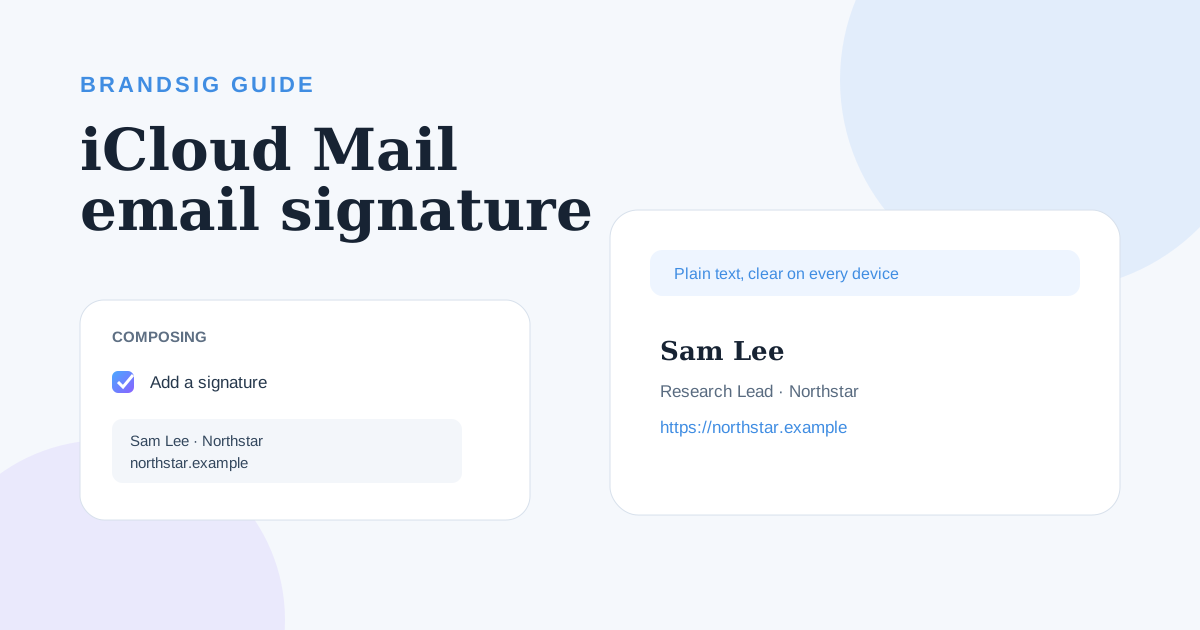
Mail on iCloud.com has a signature setting, but it is much simpler than the signature editor in Mail on a Mac. The web version creates one plain-text sign-off that appears automatically on new messages sent from iCloud.com.
This guide focuses on the browser experience and explains why changing it does not necessarily change the signature in the Apple Mail app on your Mac, iPhone or iPad.
iCloud Mail and Apple Mail are different settings
| Where you send | Where to edit | Formatting |
|---|---|---|
| iCloud.com in a browser | iCloud Mail > Settings > Composing | Plain text |
| Mail app on Mac | Mail > Settings > Signatures | Rich text and images are possible |
| Mail app on iPhone or iPad | Settings > Apps > Mail > Signature | Primarily text, per-account options |
Apple's current iCloud Mail guide explicitly describes the browser signature as plain text. For the native apps, use the separate Apple Mail signature guide.
Add a signature on iCloud.com
- Go to iCloud.com/mail and sign in to your Apple Account.
- Select the Settings button above the mailbox list.
- Choose Settings.
- Select Composing in the sidebar.
- Scroll down and enable Add a signature.
- Enter the signature text.
- Close settings and start a new message to verify it.
The text is added automatically to new mail composed in the iCloud web interface. Keep it short enough that it does not dominate replies.
What to include in a plain-text signature
A useful iCloud web signature can be four compact lines:
- Your name.
- Role and company.
- One phone number or website.
- An optional short availability or legal line.
Write full links beginning with https:// so clients have the best chance of making them clickable. Do not simulate a visual layout with long rows of spaces; proportional fonts and mobile widths will break the alignment.
Can iCloud.com use a logo or HTML?
The current iCloud.com signature setting is plain text. It does not provide the rich editor needed for a BrandSig HTML layout, a logo or styled columns.
If you need a designed signature, configure it in the Mail app on Mac or use another client that supports HTML signatures. The design applies when sending from that client; it is not a promise that the same HTML will be available in the iCloud web composer.
This distinction prevents a common mistake: repeatedly pasting formatted content into iCloud.com and assuming a browser problem stripped it. The editor is intentionally limited.
Use different signatures for different accounts
The iCloud.com setting applies to mail composed through the iCloud web experience. It is not a central signature manager for every email account configured on Apple devices.
On a Mac, Apple Mail can store several signatures and assign them to accounts. On iPhone or iPad, the Mail settings can use one signature for all accounts or different text per account. Configure the client you actually send from most often, then test the others separately.
Remove the iCloud Mail signature
Return to Settings > Composing and clear the Add a signature checkbox. New messages will no longer receive the saved text.
If a signature still appears, identify where the message is being composed. A signature stored in Apple Mail, Gmail, Outlook or another connected client is independent of the iCloud.com checkbox.
Fix common iCloud signature problems
The signature looks unformatted. That is expected on iCloud.com; Apple supports plain text in this setting.
A change does not appear on iPhone. The iPhone Mail app has its own signature preference. Edit the device setting separately.
The signature appears only in the browser. This is the intended scope of the iCloud.com setting.
A website is not clickable. Use the complete https:// address and test the received message; link detection belongs to the receiving client.
The wrong account details appear. iCloud.com is not managing the signatures of all accounts on your device. Configure each sending client and identity directly.
There are two signatures. A local app or downstream mail system may be adding another version. Send from iCloud.com and from the app separately to isolate the source.
Keep web and device signatures consistent
Use the same wording across iCloud.com and Apple Mail even when the formatting differs. Store the approved name, role, phone and website in one reference document so a job-title change is not corrected on the Mac but forgotten in the browser.
For a designed desktop signature, build the full version in BrandSig and keep a concise plain-text equivalent for iCloud.com and mobile fallbacks. Consistency of information matters more than forcing the same visual treatment into an editor that does not support it.
Test the place you actually send from
Send one message from iCloud.com and another from every Apple Mail device you use. Compare the received versions, check links and reply once. The reliable mental model is simple: iCloud.com, Mail on Mac and Mail on iPhone are three composers with separate signature controls.