
How to add an email signature in Fastmail
Create signatures for Fastmail aliases, enable rich text, add a remotely hosted logo and choose where signatures appear in replies and forwards.
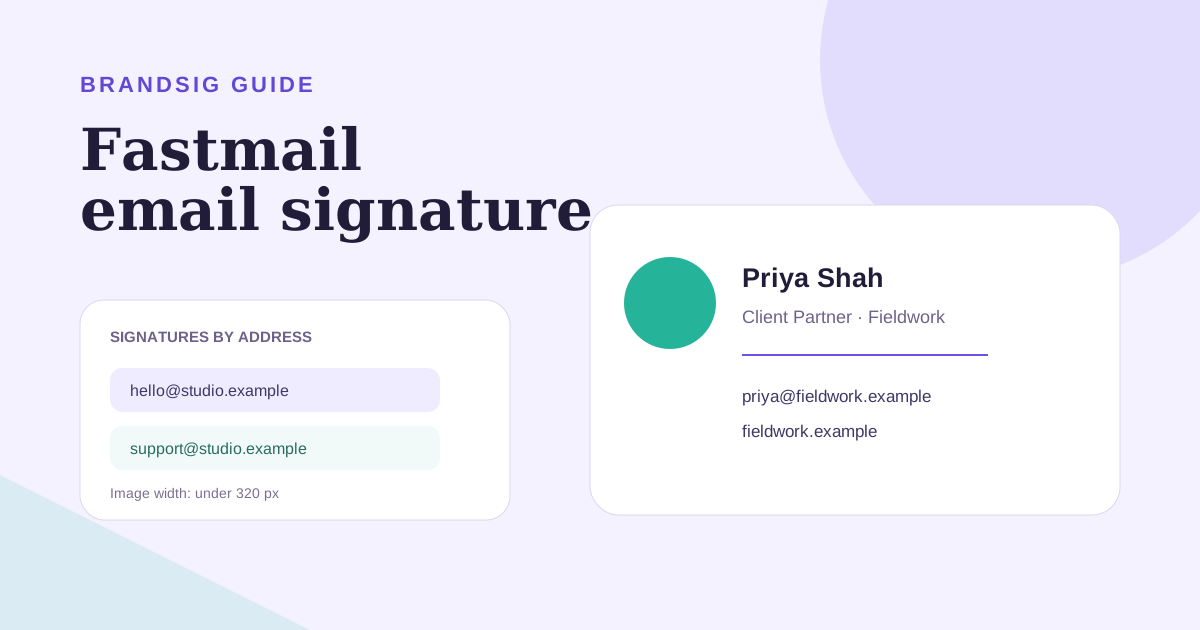
Fastmail attaches signatures to email addresses and aliases. That makes it easy to keep a different identity for work, personal mail or a custom domain, but it also means the signature can appear missing when the wrong address is being edited.
This guide covers the current signature tab, rich-text requirement, remotely hosted images and reply placement.
Fastmail signature settings at a glance
| Task | Location | Important detail |
|---|---|---|
| Create a signature | Settings > My email addresses > Signatures | Open the address or alias you want |
| Enable formatting | Settings > Mail preferences | Rich text must be allowed |
| Add an image | Signature editor image button | The image needs a public URL |
| Control replies | Settings > Mail preferences | Choose above, below or no signature |
Fastmail's current signature guide documents address-specific signatures and recommends keeping signature images under 320 pixels wide.
Create a Fastmail signature
- Open Settings.
- Select My email addresses.
- Open the Signatures tab.
- Find the alias under Addresses without a signature.
- Click the arrow to expand it.
- Add the signature and click Save.
Repeat this for every address that should have its own sign-off. Start a new message, change the From address and verify that Fastmail swaps to the correct version.
Enable rich-text formatting
If the signature editor does not show formatting controls, go to Settings > Mail preferences and allow rich-text formatting as the default message format. Return to the signature tab after saving the preference.
Rich text enables fonts, colors, links and images, but restraint still matters. A signature is rendered by the recipient's client, not only by Fastmail. Use common fonts, normal link styles and a simple structure that survives forwarding.
Paste a BrandSig design
Build a signature in BrandSig, copy the rendered design and paste it into Fastmail's rich-text editor. Keep important information as live text and use the logo only as an accent.
Fastmail's editor is designed for formatted content rather than arbitrary webpage code. If a complex layout changes after paste, simplify it to one or two columns and inline styles. Test the sent result in another provider before rolling it out to several aliases.
Add a logo with a public URL
Fastmail does not upload a local image directly through the signature editor. Click the image button and provide an image URL that is already available on the internet.
Fastmail Files can host it: upload the file, open it, choose Share, enable sharing and copy the public URL. You can also use a server you control. Avoid linking to an image owned by another website; it can be removed, changed or blocked for hotlinking.
Fastmail recommends an image width below 320 pixels because it does not resize the source for recipients. A wider image can cause horizontal scrolling on phones. Optimize the actual file instead of relying only on a visual width setting.
Set signatures for aliases
Every address in My email addresses can have its own signature. Match the details to the identity: the company name, reply address, website and legal line should make sense for the From address selected in the composer.
Use unique content when an alias represents a different role or brand. If several aliases belong to the same person and company, reuse a compact core rather than maintaining visually different copies that drift out of date.
Choose placement in replies and forwards
Go to Settings > Mail preferences and find the signature position options under When replying and When forwarding. Fastmail can place the signature above the original message, below it or omit it.
For normal conversation, above the quoted message keeps the sign-off beside your new reply. A shorter reply signature avoids repeating a large logo and address in every turn. If you do not need a signature on forwards, select no signature rather than deleting it manually each time.
Use Fastmail on mobile
Signatures are address settings in Fastmail, so the saved versions are available when composing from Fastmail's mobile experience. The important test is the selected From address. Start a phone draft for each alias and confirm the correct version appears without overflowing the screen.
If a desktop design is too wide, reduce the image dimensions and simplify side-by-side content. Do not create a second giant mobile-only image; responsive text is more reliable.
Fix common Fastmail signature issues
Formatting controls are absent. Enable rich-text composition in Mail preferences.
The signature is missing. Check whether the active From address has its own signature in the Signatures tab.
The logo cannot be inserted. Use a public HTTPS URL. Fastmail's editor cannot upload the local file directly.
The logo forces side scrolling. Resize the source image below 320 pixels wide, as Fastmail recommends.
Replies have the signature in the wrong place. Change the dedicated reply and forward position settings.
Recipients see a broken image. Test the shared URL in a private window and keep the company name as text.
Test every alias
Send a new email, reply and forward from each public-facing address. Inspect the result on a phone with images blocked and click every link. Fastmail's address-based model is straightforward once each alias, rich-text preference and reply-position choice is configured deliberately.